Voice keyboard for iPhone & iPad

Say it casually.
Send it polished.

Tap the mic in any app and just talk. ClawEar drops the “um”s and “you know”s, adds punctuation, follows you when you change your mind mid-sentence, and types in clean text that’s ready to send.

Download on the App Store

Free download · Requires iOS 18 or later

Getting started

Three steps to talking instead of typing

  1. Add the keyboard

    Go to Settings › General › Keyboard › Keyboards › Add New Keyboard, add ClawEar, and turn on Allow Full Access.

  2. Start a voice session

    Open the ClawEar app, tap Start session, and drag the small card that appears to the right edge of the screen. Then go back to what you were doing. Sessions have no fixed length, with no switching back in between.

  3. Tap the mic and talk

    Switch to the ClawEar keyboard, tap the mic, and tap ✓ when you’re done. The cleaned-up text goes right into the field.

Why a session? iOS doesn’t let keyboards use the microphone, so the app records. On standby, the app doesn’t use the microphone; it records only when you tap the mic.

Features

Chats, email, notes:
if it has a text field, it works

Talk. It’s written.

Talk the way you normally do. ClawEar keeps your words and tone, and cleans up the fillers, repeats, and false starts.

YOU SAID

let me see, um, I think my flight lands tomorrow afternoon, like around three, at terminal two

TYPED IN

My flight lands tomorrow afternoon, around 3 at Terminal 2.

  • “Tell him I’m running late” becomes the message itself: “I’m running late.”
  • Ask for what you need: “write a polite note asking for tomorrow off.”
  • Lists turn into bullet points when you’re clearly listing things.
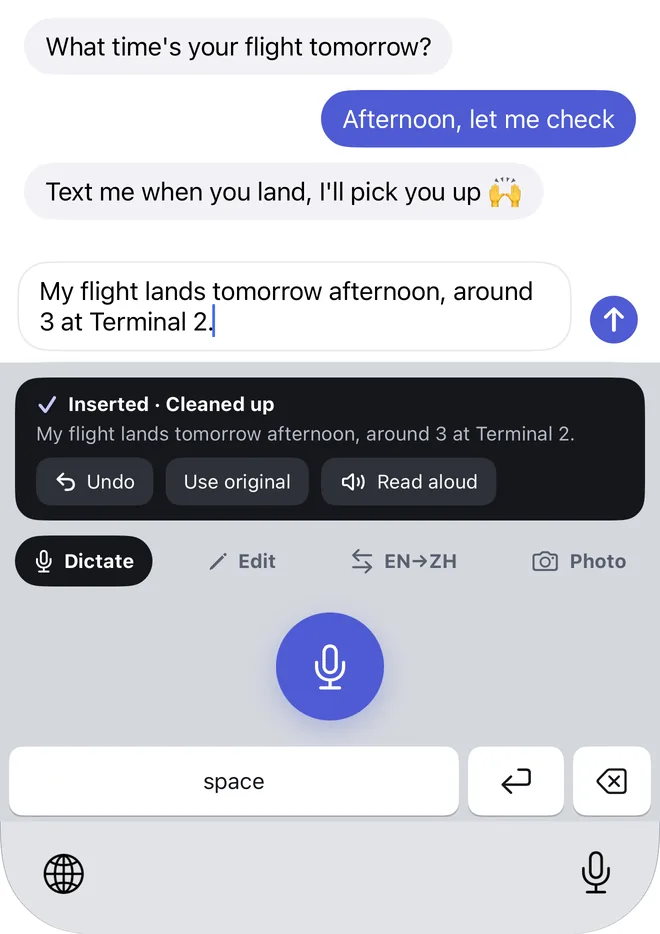
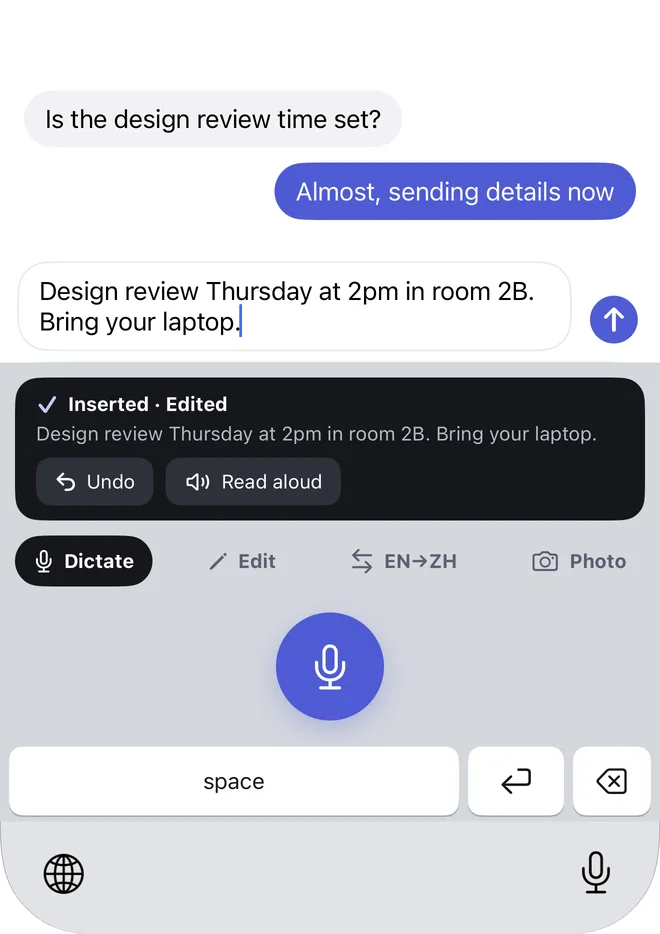
In a chat app, the ClawEar keyboard types a cleaned-up sentence into the field, with Undo, Use original, and Read aloud below

Edit it by saying so

Select some text, or edit the whole field, and just say what to change.

  • “Make it more polite”
  • “Change Friday to Monday”
  • “Add that I’ll call later”
Editing by voice changes Friday and room 3A to Thursday and room 2B in the text field

Speak English, send Japanese

Speak English or Chinese and have it come out in another language. Switch to translate on the keyboard and what you say arrives translated.

  • Traditional Chinese
  • English
  • Japanese
  • Korean
  • Vietnamese
  • Thai
  • French
  • German
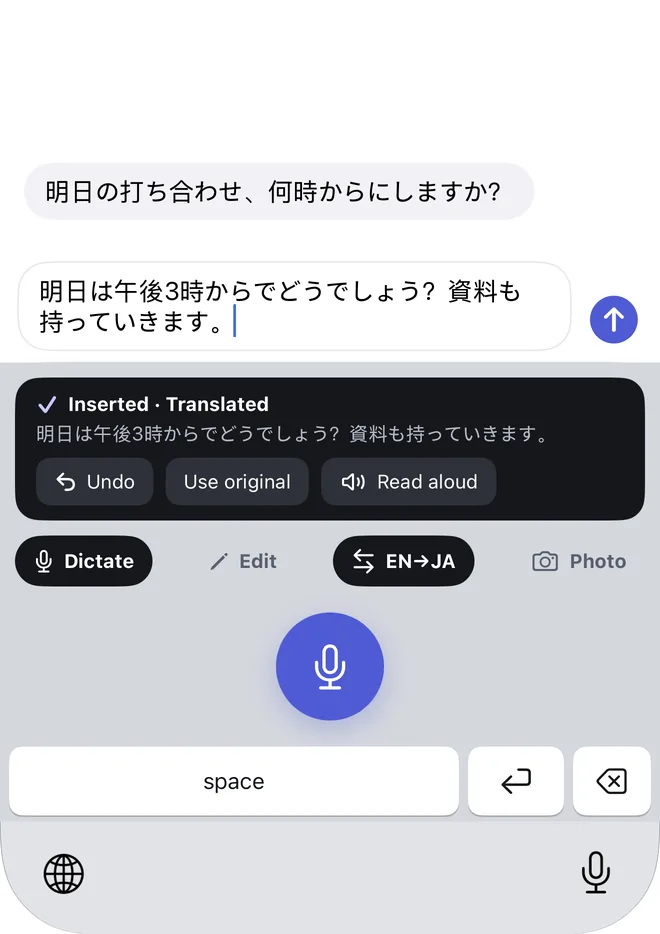
Spoken English is translated into Japanese and typed into a chat field

Snap a photo, say the rest

Snap a receipt, a sign, or a screenshot (up to 5 photos), then tell ClawEar what to do with it: “send him the account number” or “summarize this menu.”

  • Numbers are copied exactly, and anything unclear is flagged for you to check.
  • The text comes back to the keyboard for you to insert, or edit by voice first.
  • Like voice, photos are processed with ClawEar Cloud and use the same credits: one photo is about 20 seconds of dictation. No Apple Intelligence needed.
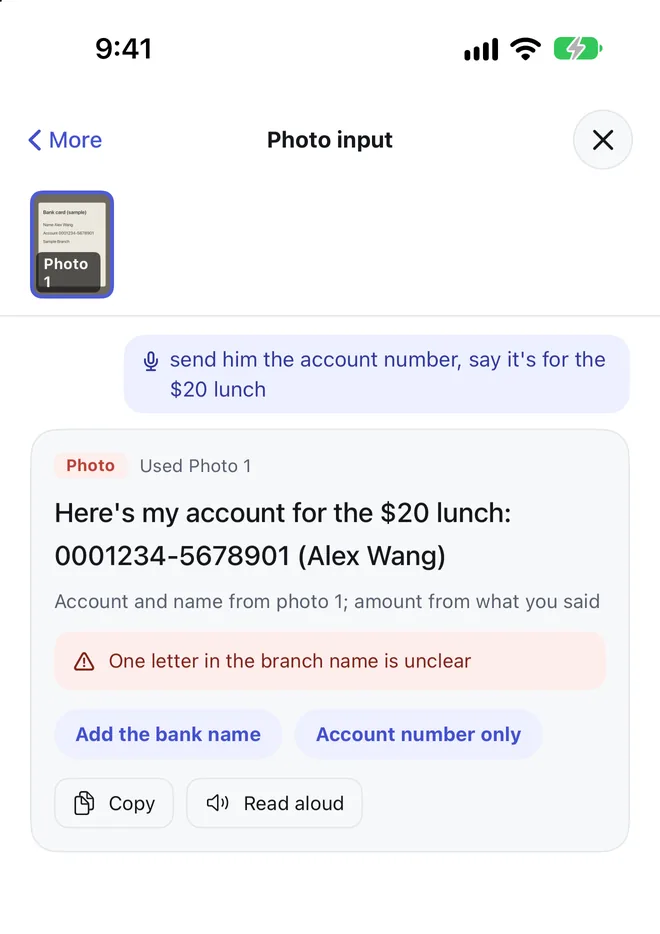
Photo input writes a payment message from a photo and what was said, and flags one unclear letter in the branch name

Hands busy? Just pause.

Turn on hands-free: pause when you’re done and ClawEar stops, types the text in, and sends it in fields with a Send key.

  • Choose how long a pause ends it (1.5, 2, or 3 seconds) and how sensitive the mic is.
  • Add the shortcut to start talking with the Action button on your iPhone.
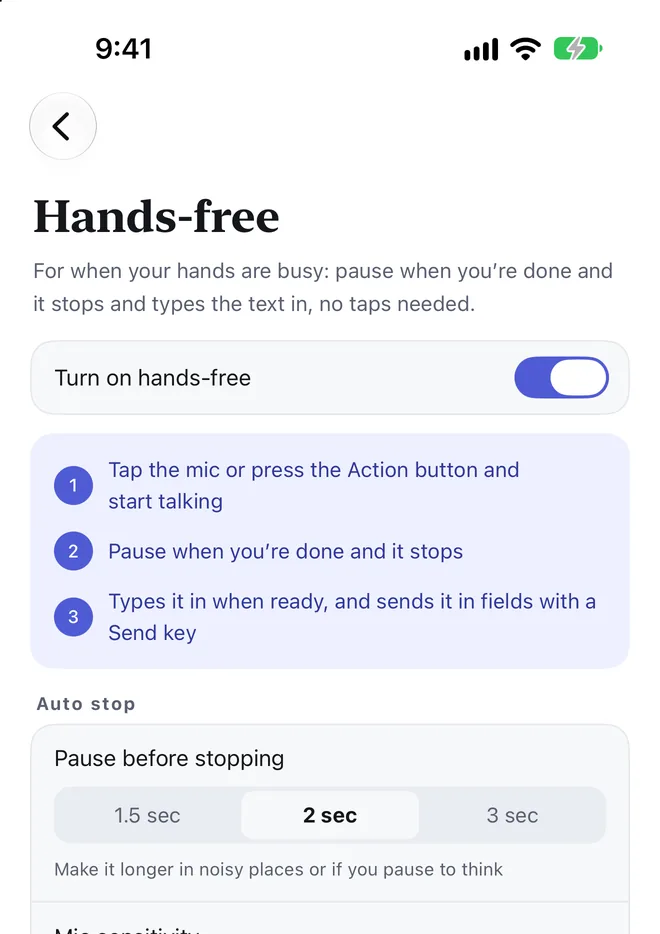
Hands-free settings: pause before stopping and mic sensitivity

Names & terms, spelled right

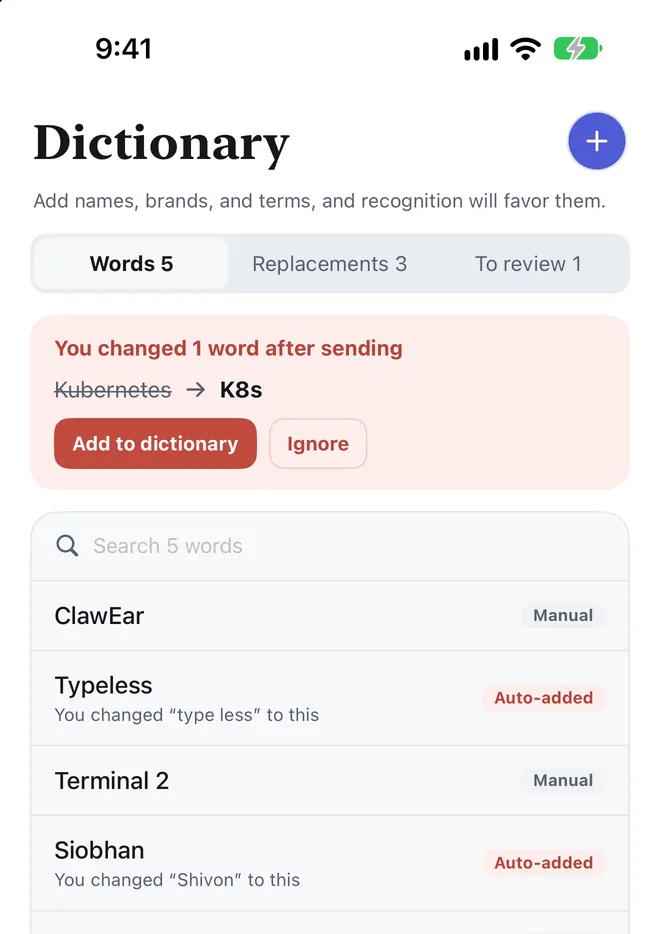
Add them to your dictionary, and set up replacements for words that keep getting misheard.

Dictionary: words, replacements, and corrections to review

Your style, every time

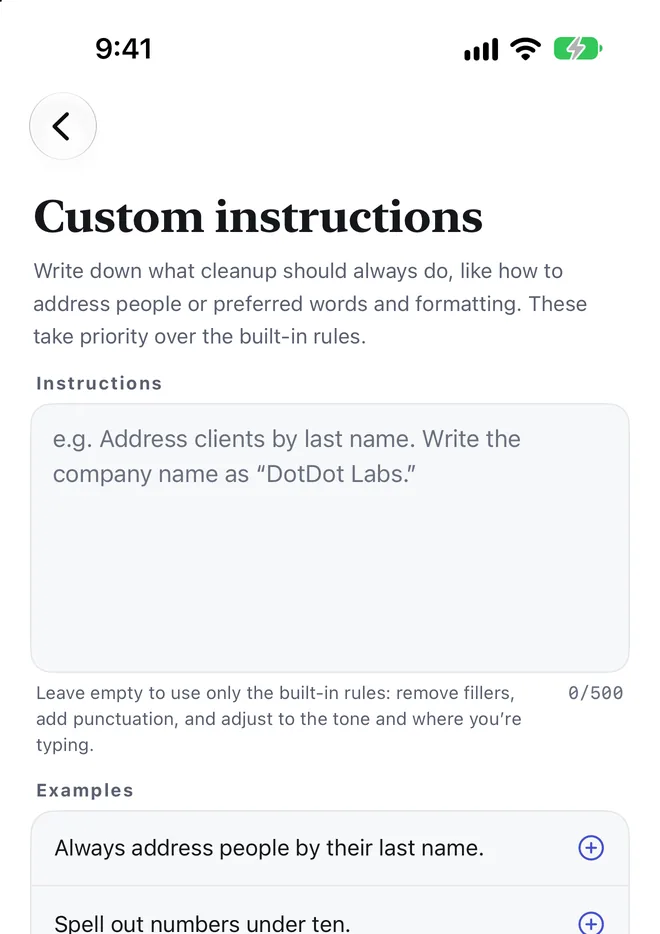
Write custom instructions, like how to address people or sign off emails. Pick a casual, natural, or formal tone.

Custom instructions: what cleanup should always do

Look back with history

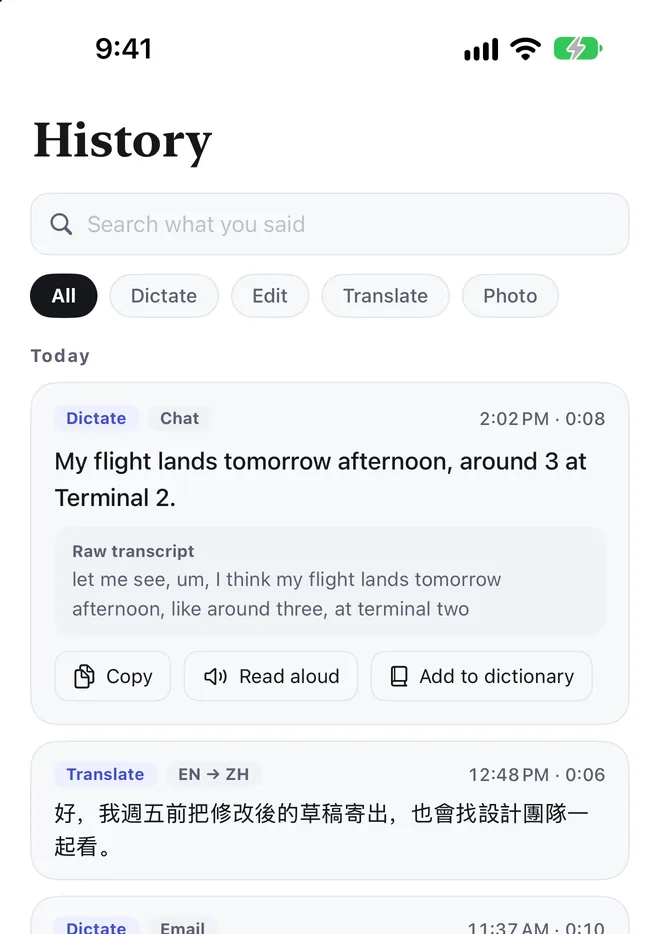
Cleaned-up text next to the raw transcript, ready to copy, read aloud, or add to your dictionary. Off by default.

History: cleaned-up text next to the raw transcript

Privacy

It listens only when you tap the mic

No account to sign up for. No ads, analytics, or tracking in the app.

Mic off on standby

While a voice session is on standby, the app doesn’t use the microphone. Recording starts only when you tap the mic, and iOS shows the orange microphone indicator while it records. Recordings are deleted from your device once processed.

We pass it on, never keep it

ClawEar Cloud is the default: recordings, text, and photos pass through our servers to OpenAI for recognition and cleanup, and except for surveys you choose to submit, our servers don’t store what you say, type, or photograph. OpenAI doesn’t use them to train models, but keeps the text and photos sent for cleanup for up to 30 days to detect abuse, then deletes them.

Or keep it all on-device

Switch to On-device and recognition and cleanup happen entirely on your device; nothing leaves it. Cleanup requires a device that supports Apple Intelligence.

The keyboard stays offline

Full Access is used only to exchange recording status and cleaned-up text with the app. The keyboard never sends what you type anywhere. History is off by default, and stays on your device if you turn it on.

Read the full Privacy Policy

Plans

Free to use. Upgrade when you need more.

ClawEar Cloud uses credits, shared by voice and photos (one photo is about 20 seconds). Out of credits? It switches to on-device at no extra charge.

Free

$0

Just download it

  • Unlimited on-device recognition and cleanup
  • Monthly ClawEar Cloud credits for about 20 minutes of dictation
7-day free trial

Pro

Monthly or yearly

See your price in the App Store

  • Monthly ClawEar Cloud credits for about 300 minutes of dictation
  • One subscription works on up to 5 devices
  • New subscribers can try it free for 7 days, with credits for about 60 minutes of dictation

Pro is an auto-renewing subscription; cancel anytime in your App Store account settings. Credits reset each period and don’t roll over. Prices are shown in the App Store for your region. See the Terms of Use.

FAQ

Good questions

Why do I have to start a voice session in the app?

iOS doesn’t allow keyboards to use the microphone, so the ClawEar app records. Opening the app starts a voice session (the first time, tap Start session). Drag the small card that appears to the right edge of the screen, and you can tap the mic on the keyboard and talk without switching back. Sessions have no fixed length; once one ends, tapping the mic on the keyboard takes you back to the app to start a new one.

Why does the keyboard need Full Access?

The keyboard uses it to exchange recording status and cleaned-up text with the app. The keyboard itself makes no network connections and never transmits what you type.

Which languages can I speak?

English and Chinese. Translation can output Traditional Chinese, English, Japanese, Korean, Vietnamese, Thai, French, or German.

What happens when I run out of credits?

ClawEar switches to on-device processing at no extra charge. Credits reset each period; see how much is left in the app under Settings › Plan & usage.

Which devices are supported?

iPhone and iPad with iOS 18 or later. On-device cleanup needs a device that supports Apple Intelligence; on other devices it types the raw transcript. With ClawEar Cloud, voice and photos have no such requirement.

Something else? See Support, or email service@dimanyen.com.

Talk instead of type

Start a voice session, go back to whatever you were writing, and just talk.

Download on the App Store